
1. Before you begin
The SUNMOD module provides a UART interface; it does not provide a native USB interface. Open the application in a supported browser over HTTPS and close any other program that is using the same serial port.
Warning: SUNMOD uses a 3.3 V/5 V-compatible logic-level UART interface. Do not connect true RS-232 signal levels directly; their positive and negative voltages can damage the module.
Connection options
- External USB-to-UART converter: connect the converter TX to the module RX, converter RX to the module TX, and connect the converter ground to the module ground.
- SUNMODP0xEVK: the SUNMODP0xEVK is an evaluation board designed to evaluate, test, and configure SUNMOD modules such as the SUNMOD03PU. It includes a Silicon Labs CP2102C USB-to-UART bridge. Connect the EVK to the computer by USB, then select the serial device shown by the browser. On current Windows and macOS systems it is normally detected without manually installing a separate driver. If it does not appear, reconnect it, try another data-capable USB cable or port, install operating-system updates, and contact Behvolt if the problem remains.
- Customer Hardware / Host Board: when a SUNMOD03PUxx is installed on a host board, that board may expose the module UART through its own USB-to-UART bridge. If the host board does not normally expose UART over USB, connect an external USB-to-UART converter based on a device such as an FT232 family bridge or Silicon Labs CP2102C. Connect TX to RX, RX to TX, and share ground. When the operating system recognizes the bridge as a serial device, the browser can present it in the Web Serial port chooser.
2. Connect to the device
Confirm the product and interface in the Communication card, select Connect, and choose the USB-to-UART bridge's serial port in the browser dialog. The app requests Manual/Config Mode and then reads the firmware, status, and supported settings.
3. Device operation modes
Manual/Config Mode allows UART reads, settings changes, and supported output-control commands. Automatic Mode returns the module to standalone operation using its stored settings. Most commands are rejected by the device while it is in Automatic mode.
4. System Status
Use Read All for one update or enable Auto Polling for repeated status reads. The card shows firmware, voltage readings, digital inputs, and device fault bits.
Save Snapshot
Save Snapshot captures the values currently displayed in the System Status card. It does not perform a new device read, so use Read All first or enable Auto Polling if you need recently refreshed values. The snapshot is a human-readable .txt file containing the displayed measurements and states, together with export time, product, firmware, app, browser, operating-system, theme, and device-mode information.
The following abbreviated example illustrates the snapshot text format. Values vary with the connected device and the state displayed when the button is pressed.
SUNMOD System Status Snapshot

Web App: SUNMOD Configuration Tool
Web App Version: 0.3.0
Export Type: System Status Snapshot
Exported At: 2026-08-27T14:30:15.123+08:00 (Asia/Taipei)
Product: SUNMOD03PU
Firmware Version: 01F1.6
Browser: Google Chrome 139.0.0.0
Operating System: macOS 15.6
Theme: Follow OS (Light)
Device Operation Mode: Manual/Config Mode

SYSTEM STATUS
Firmware Version: 01F1.6
Battery Voltage: 12594 mV
Panel Voltage: 18420 mV

DIGITAL INPUTS STATUS
S1 (Photocell): Low (Enabled)
S2 (Flasher): High (Disabled)
S3 (ForceLoadOff): High

DEVICE FAULTS STATUS
Raw: 0 (00000)
CHARGE HW Fault: Clear (Low)
CHARGE Soft OVP: Clear (Low)
LOAD HW Fault: Clear (Low)
LOAD Soft OVP: Clear (Low)
SEN: Clear (Low)
5. Device Settings
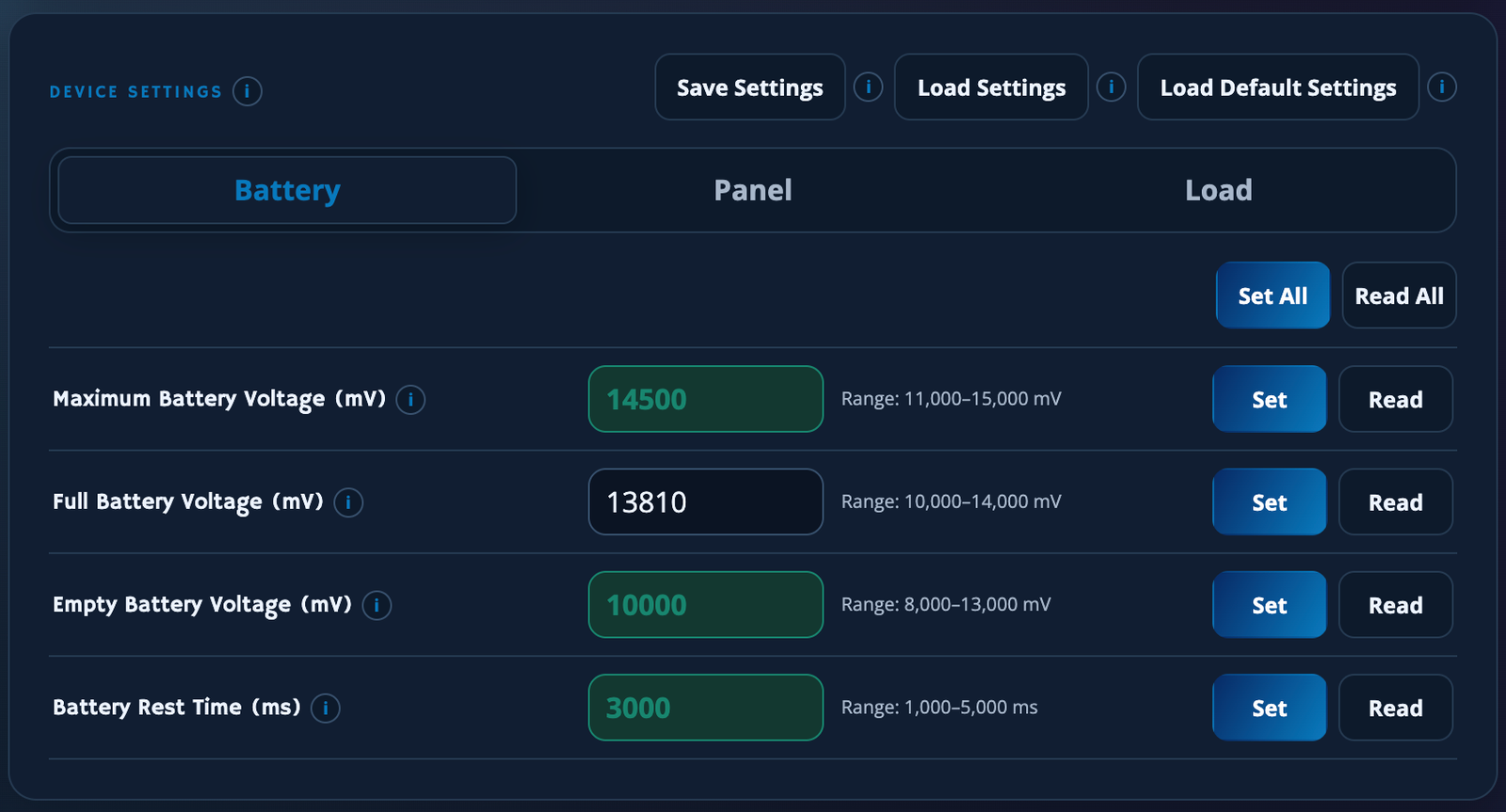
Settings are grouped into Battery, Panel, and Load tabs. Read and Set operate on one setting; Read All and Set All operate on the visible group. A green field indicates a value verified by reading it from the connected device. Editing or loading a value removes that verification state.
The following image is an example. Green fields have been verified from the connected device at least once and have not been modified afterward. In this example, Full Battery Voltage was changed to 13,810 mV, so it is no longer green. If Set succeeds and the value is successfully read back from the module, the field becomes green again.
Save Settings
The app reads all supported settings from the device before saving the file, ensuring the export represents the hardware rather than potentially stale fields.
Load Settings and Load Default Settings
Load Settings imports values from a compatible settings file on your machine and places them into the application fields. Load Default Settings loads Behvolt-provided default values that correspond to the applicable product datasheet. Neither action writes any value to the connected module.
Review every loaded value before writing. It is your responsibility to confirm that the proposed settings are intended, safe, and applicable to your product, connected battery, panel, load, and overall application. When you are satisfied, use the individual Set buttons or Set All for each group you choose to write to the module.
6. Device Power Outputs
In Manual/Config Mode, use the LOAD and CHARGE controls to send supported ON or OFF commands. “Last Command” means the most recent command acknowledged by the module; it is not a direct electrical measurement of the physical output.
7. Communication Log
The log records raw TX and RX bytes plus application SYS messages. Each TX/RX row contains up to 16 bytes. It follows new data until you interact with or scroll away from the bottom, and resumes following when you return to the bottom. To remain responsive during heavy serial traffic, received bytes are grouped for display and identical active error notifications are combined into one toast with an occurrence count. Raw received bytes remain in the RX log, subject to the log's 10,000-line retention limit.
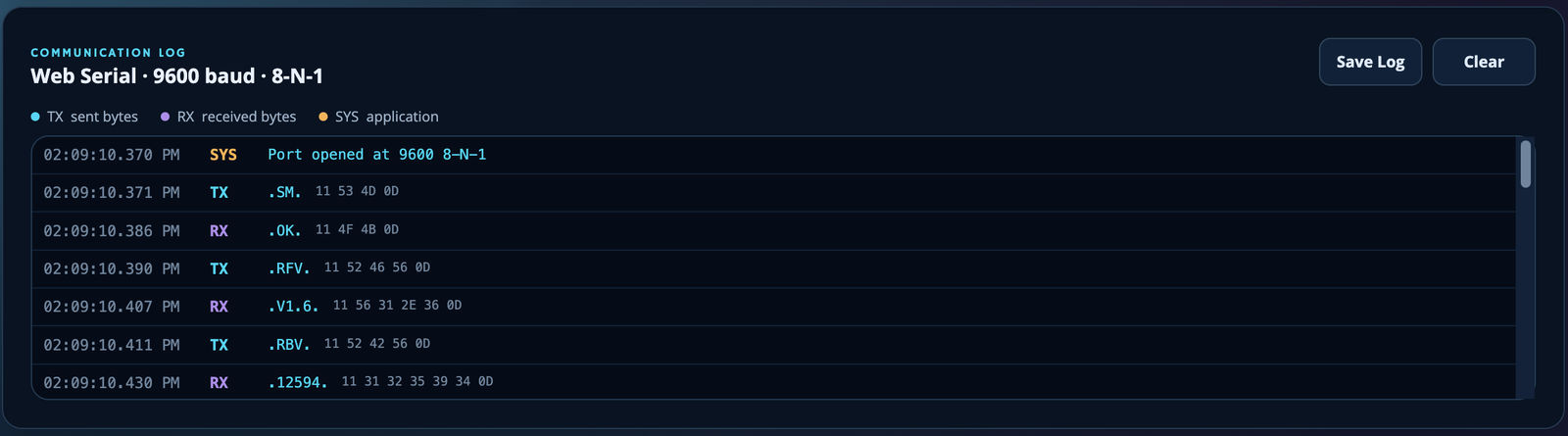
SYS messages
SYS rows are generated by the application rather than transmitted by the SUNMOD device. The following table covers every SYS message pattern currently produced by the app. Text shown in angle brackets varies with the command, browser, device reply, or underlying error.
| SYS message pattern | Meaning and recommended response |
|---|---|
Port opened at 9600 8-N-1 | The selected serial port opened successfully using 9600 baud, 8 data bits, no parity, and 1 stop bit. |
Serial receiver using an 8 KiB BYOB buffer. | The browser allowed the application to supply its reusable 8 KiB receive buffer. This is an informational message and does not require action. |
Serial receiver using the browser-controlled default buffer. | The browser did not provide the optional BYOB reader, so the application is using the browser's normal receive buffering. This is an informational fallback and does not by itself indicate a fault. |
Port closed | The application completed its serial-port close sequence. |
Connection failure: <details> | An operation could not continue because of a timeout, rejected command, serial read/write problem, mode-confirmation failure, or another connection-related error. Review the details, wiring, selected port, device mode, and power. |
Protocol error: Serial data was received outside an active command response window; further outside-window reports are suppressed until an in-window framed reply is received. | Data arrived when the application had no command awaiting a reply. The raw bytes remain visible in RX rows. The application reports this once and suppresses repeated outside-window warnings until a complete framed reply is received for a later active command. Check whether the module or another tool is transmitting unexpectedly through the same serial path. |
Protocol error: Received <count> bytes while invalid SUNMOD protocol data was detected; repeated protocol errors were suppressed. | The port received a burst containing data that did not follow the SUNMOD protocol. Raw bytes remain visible in RX rows. Verify the port, connected product, UART settings, and other transmitters. |
Protocol error: Received a non-ASCII protocol byte: <byte>. | A candidate SUNMOD frame contained a byte that is not valid protocol text. Check for binary traffic, corruption, incorrect serial settings, or another device on the selected port. |
Protocol error: Received an oversized SUNMOD frame. | A candidate frame exceeded the application's maximum supported payload length, usually indicating corrupted or non-SUNMOD traffic. |
Protocol error: Device returned E for <command>. | The module returned its explicit E error reply for the command shown. The affected value is displayed as Error where applicable. Check the device state and command conditions before retrying. |
Unsupported device version: "<reply>". | The exact version remains visible with a yellow warning icon. During connection, its tooltip and the error toast say: This version is unsupported, please disconnect the application and connect a supported device. Device-operation controls are disabled, but Disconnect remains available and the port stays connected until the user disconnects it. |
Protocol error: <command> returned an invalid acknowledgement: <reply>. | A command that should return OK or NOK returned another value. |
Protocol error: <command/value> returned invalid data. | A voltage, setting, pin bitmask, fault bitmask, or other reply did not match its required numeric format or range. The detailed message identifies the affected command or value. |
Serial receive buffer overflow detected. Some incoming bytes may have been lost. | The browser reported that incoming serial data exceeded its receive capacity. Auto Polling stops and the affected data must be treated as incomplete. |
Serial receiver reset automatically after buffer overflow. | The application successfully reopened its receive reader after an overflow. Repeat any operation whose reply may have been lost. |
Automatic serial receiver reset failed: <details> | Automatic overflow recovery did not succeed. Disconnect and reconnect the device, then retry. |
Physical disconnection: <details> | The browser reported that the serial device was physically removed or became unavailable. |
Physical-disconnection cleanup: <details> | An additional error occurred while the application was cleaning up after physical removal. Reconnect the hardware and reopen the app if necessary. |
Save Log
Save Log copies the currently retained communication history before opening the save dialog. New entries received while that dialog is open are therefore not added to the captured export. Choose one of the following formats:
- Text log (.txt): a human-readable export that can be opened in a normal text editor. It contains export and environment information followed by the timestamped TX, RX, and SYS rows.
- IO Ninja log (.njlog): a binary log intended for inspection with IO Ninja by Tibbo Technology. It preserves timestamped TX and RX byte records, SYS records, and export metadata. Choose this format when you use IO Ninja or when Behvolt support specifically requests it; it is not intended to be read in a normal text editor. Availability and licensing of IO Ninja itself are governed by its provider. See the app's Third-Party Notices for information about the format implementation used by this web application.
The following abbreviated example illustrates the text-log format:
SUNMOD Terminal Log

Web App: SUNMOD Configuration Tool
Web App Version: 0.3.0
Export Type: Terminal Log
Exported At: 2026-08-27T14:32:08.450+08:00 (Asia/Taipei)
Product: SUNMOD03PU
Firmware Version: 01F1.6
Browser: Google Chrome 139.0.0.0
Operating System: macOS 15.6
Theme: Follow OS (Light)
Device Operation Mode: Manual/Config Mode

LOG

[14:31:58.102] SYS | Port opened at 9600 8-N-1

[14:31:58.250] TX | .SM. | HEX 11 53 4D 0D

[14:31:58.276] RX | .OK. | HEX 11 4F 4B 0D
Choosing a filename and save location
For status snapshots, settings exports, and communication logs, the app prepares the export before asking where to save it. When supported, you can change the suggested filename and choose a location. Cancelling the dialog cancels the save.
If your browser cannot show a file-location picker, the app automatically downloads the file using your browser's normal download settings. Some browsers, managed devices, or protected system folders may restrict where web applications can save files. Check your browser's Downloads list if no location was requested.
All exports are created locally in your browser. They are not uploaded or automatically transmitted to Behvolt.
8. Disconnect
Select Disconnect before unplugging the device when practical. Save any snapshot, settings, or communication log you want to retain before leaving or refreshing the page.
9. Factory Integration and Self-Hosting
Some customers may need a self-hosted or tailored version of this application—or selected configuration and test functions—for use on private servers, production lines, factory test stations, or quality-control systems. This can be useful when testing host boards that incorporate SUNMOD modules or when integrating device configuration into a manufacturing workflow.
Behvolt can review these requirements and may provide technical assistance, customization, integration support, or an appropriate deployment arrangement under mutually agreed technical and commercial conditions. Availability and scope are evaluated case by case. Contact Behvolt with information about your SUNMOD product, host board, production process, test requirements, expected volume, and desired level of automation. We will do our best to help you develop a reliable and efficient configuration, QC, and production-test solution.
Important: This guide does not replace the applicable product datasheet, electrical specifications, or safety instructions. Confirm hardware compatibility and configuration values before operating or writing to a device. Use is subject to the Behvolt Terms of Service.